aniPet Bloom Live Wallpaper is released on Android Market

December 20th, 2010

aniPetBloom icon
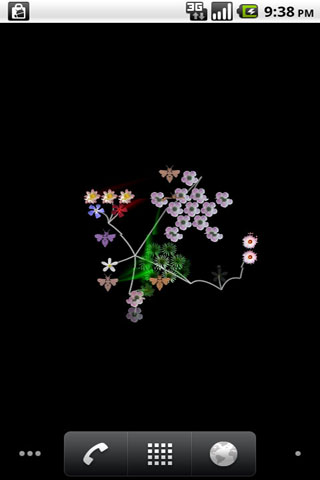
aniPetBloom screenshot aniPetBloom screenshot

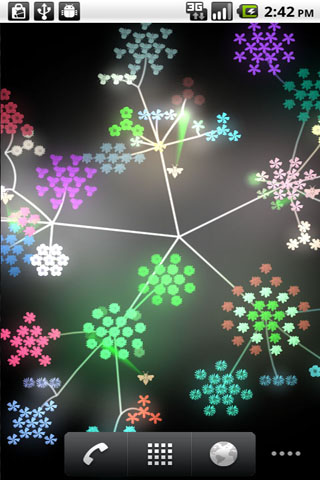
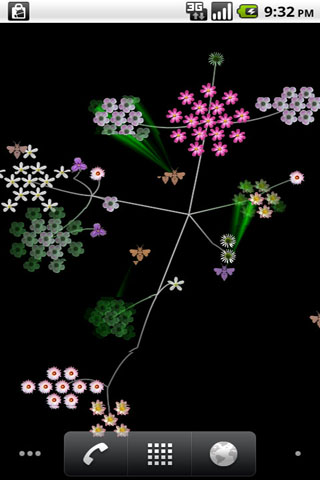
aniPet Falling is the 7th live wallpaper of aniPet series, it simulates virtual flower blooming and pollination. You could control the animation speed, flower amount, bee number, background color, etc.

How to set aniPet Bloom Live Wallpaper:

To set aniPet Falling as your live wallpaper, take the following steps:
1) Long press in an empty area of your Home screen, the “Add to Home screen” dialog will pops up, select “Wallpapers”. Or you could press the MENU button, then select “Wallpaper” from the option menu.
2) From the “Select wallpaper from” dialog, select “Live wallpapers”.
3) Select the “aniPet Bloom” from the live wallpaper list.
4) Within the “aniPet Bloom” preview screen
a) press “Settings” button to go to Preference Setting dialog.
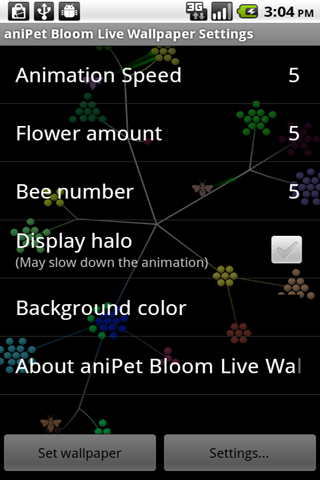
You could control the animation speed, flower amount, bee number, background color, etc.
Press the BACK button to return to the preview screen.
b) press the “Set wallpaper” button to set “aniPet Bloom” as your live wallpaper.

How to use aniPet Bloom Live Wallpaper

You could launch the Settings by pressing HOME/MENU/Wallpaper/Live Wallpaper/aniPet Bloom/Settings.
Within the Settings page, you could
* Change the animation speed (1 – 10, default 5).
* Change flower amount (1 – 10, default 5).
* Toggle the display of original or random color for flowers.
* Change bee number (1- 10, default 5).
* Display or hide halo.
* Change the background color (default black).

Display halo may slow down the animation if your phone is not that powerful. If you find the animation is slow, please uncheck the “Display halo” option.

aniPet Falling Live Wallpaper is released on Android Market

October 18th, 2010

aniFalling icon
aniFalling screenshot aniFalling screenshot

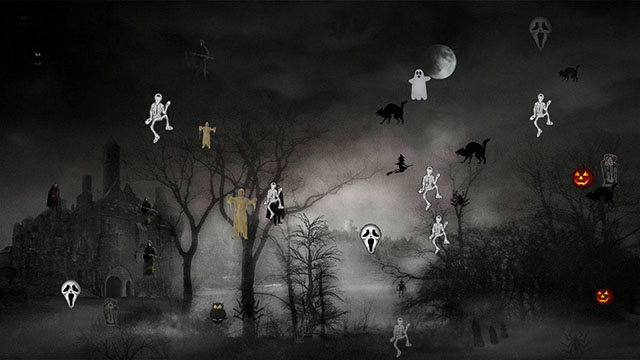
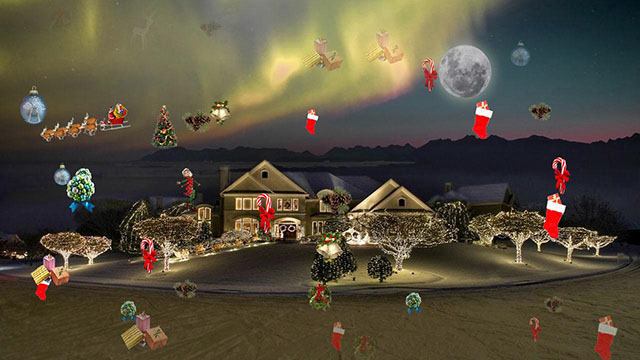
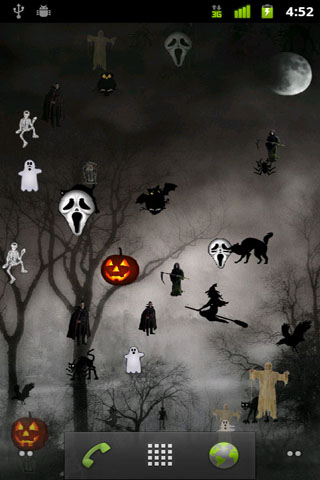
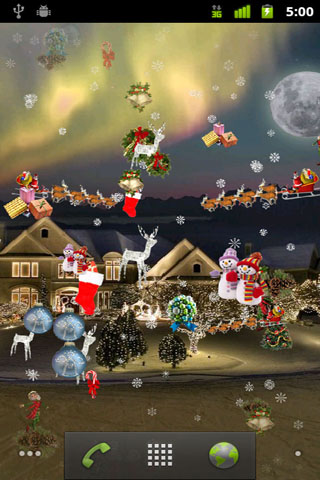
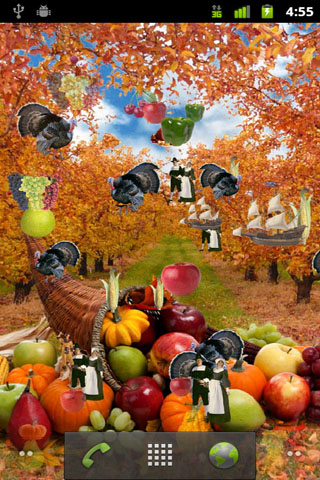
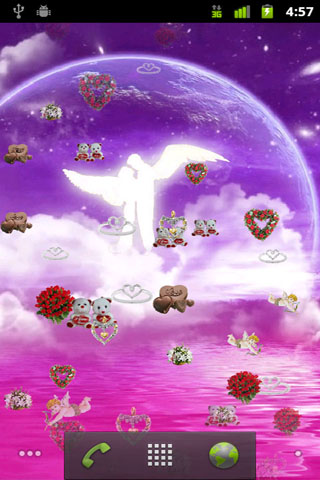
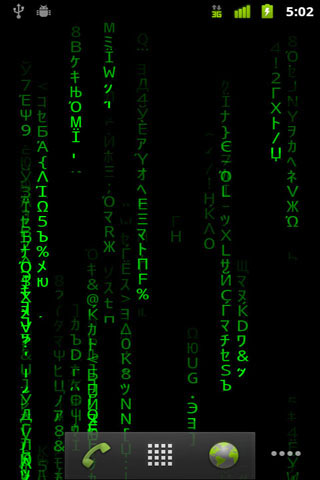
aniPet Falling is the 6th live wallpaper of aniPet series, it simulates object raining effect with different themes.

Current available themes:
* Snowing
* Valentine
* Christmas
* Thanksgiving
* Halloween
* Matrix
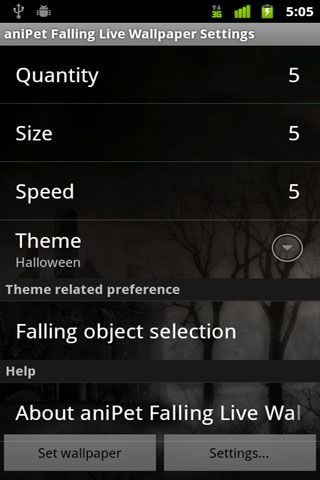
You could set falling object quatity, size, speed, theme, and select individual falling object as well.

How to set aniPet Falling Live Wallpaper:

To set aniPet Falling as your live wallpaper, take the following steps:
1) Long press in an empty area of your Home screen, the “Add to Home screen” dialog will pops up, select “Wallpapers”. Or you could press the MENU button, then select “Wallpaper” from the option menu.
2) From the “Select wallpaper from” dialog, select “Live wallpapers”.
3) Select the “aniPet Falling” from the live wallpaper list.
4) Within the “aniPet Falling” preview screen
a) press “Settings” button to go to Preference Setting dialog.
You could set falling object quantity, size, speed, theme, and select falling objects, etc.
Press the BACK button to return to the preview screen.
b) press the “Set wallpaper” button to set “aniPet Falling” as your live wallpaper.

How to use aniPet Falling Live Wallpaper

From the the Settings page (Launch it by pressing HOME / MENU / Wallpaper / Live wallpapers / aniPet Falling / Settings):
1) Set falling object quantity (scale 0 – 10). Select 0 means no falling object, only background.
2) Set falling object size (scale 1 – 10).
3) Set falling object speed (scale 1 – 10).
4) Select falling object themes.
5) Select falling object individually.
6) Show this information page.

aniPet Blue Sea Live Wallpaper is released on Android Market

September 2nd, 2010

aniPetBlueSea icon
aniPetBlueSea screenshot aniPetBlueSea screenshot

Do you like Samsung Galaxy S stock Blue Sea live wallpaper? Here is the customizable one with more features.

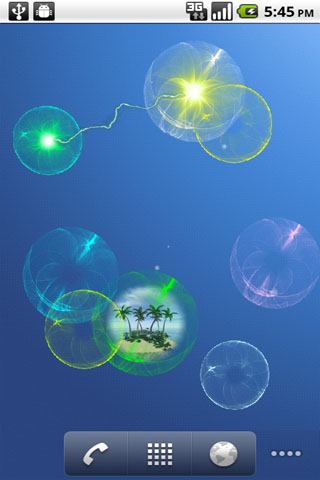
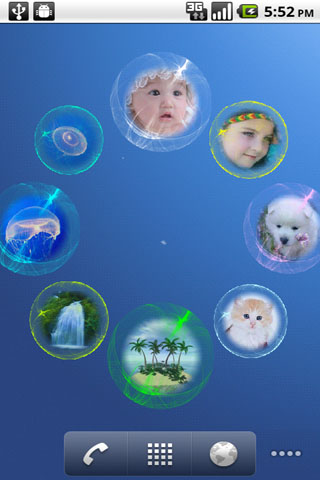
aniPet Blue Sea is the 5th live wallpaper of aniPet series, it simulates bioluminescent sea creatures floating in blue sea with interaction.

Its main features include:
* Customize each creature’s type, body color, light color, and size
* Change the background with your favorite photos in your gallery
* Avatar picture for each creature displayed with specified touch patterns, replace it with your favorite photos
* Many touch interactions
* Attractive creature animations
      
Many options available. More creature types and animations coming soon.

How to set aniPet Blue Sea Live Wallpaper:

To set aniPet Aquarium as your live wallpaper, take the following steps:
1) Long press in an empty area of your Home screen, the “Add to Home screen” dialog will pops up, select “Wallpapers”. Or you could press the MENU button, then select “Wallpaper” from the option menu.
2) From the “Select wallpaper from” dialog, select “Live wallpapers”.
3) Select the “aniPet Blue Sea” from the live wallpaper list.
4) Within the “aniPet Blue Sea” preview screen
    a) press “Settings” button to go to Preference Setting dialog.
    You could change the creature’s type, size, body color, light color, and its avatar picture, set creature floating speed, turn on the touch vibration when trigger avatar display or lightning, change the background with your favorite photo.
    Press the BACK button to return to the preview screen.
    b) press the “Set wallpaper” button to set “aniPet Blue Sea” as your live wallpaper.

How to use aniPet Blue Sea Live Wallpaper
 
Interaction operations:
1) Single tap on a creature to light it.
2) Double tap on a creature to light it, then display its avatar picture.
   You could keep tapping on the creature when its light is on to light it for longer time, then the avatar picture will be displayed longer too.
3) Touch down on empty area, then move over any creature will light that creature.
4) Touch down on a source creature, then move to a destination creature and finish the touch, there will be the lightning from the source creature to the destination creature, the lightning color is the source creature’s light color.
5) Double tap on empty area will trigger creature animations. (only one animation available for current version, more coming soon).    
   
Creature customization:
1) Press HOME/MENU/Wallpaper/Live Wallpaper / aniPet Blue Sea / Settings to launch settings.
2) Click the “Manage creatures” to display the creature list, which lists all the creatures with their types, sizes, avatar pictures.
3) Click on any creature item to go to the “Creature Settings” page, where you could change the creature’s:
   a) Type  (only 2 types for current version, more coming soon)
   b) Body color
   c) Light color
   d) Size ( 5 – 20)
   e) Avatar picture (click it to change with your favorite photos in your gallery)

aniPet Freshwater Aquarium is released on Android Market

June 29th, 2010

aniPetAquarium icon
aniPetFreshwater screenshot aniPetFreshwater screenshot

aniPet is a live wallpaper series for animated pets, designed for Android platform v2.1 and later versions.

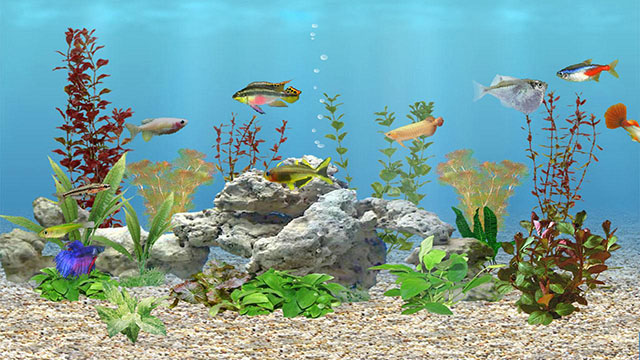
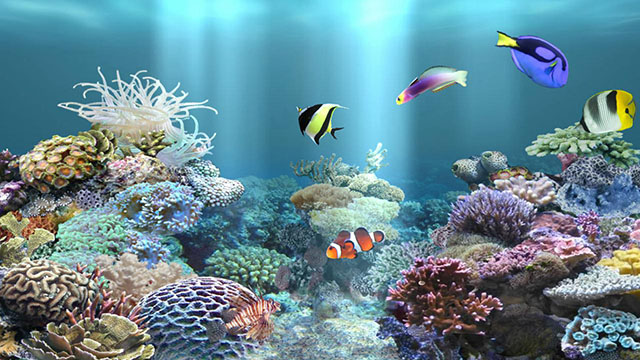
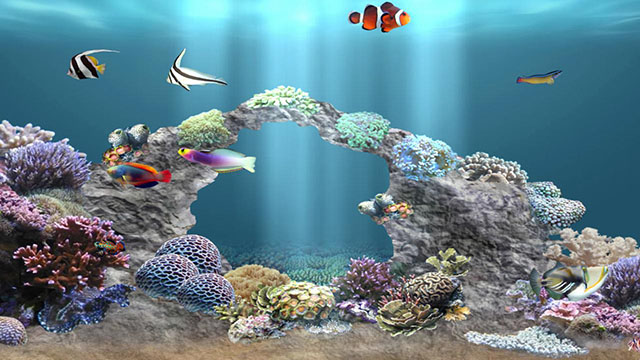
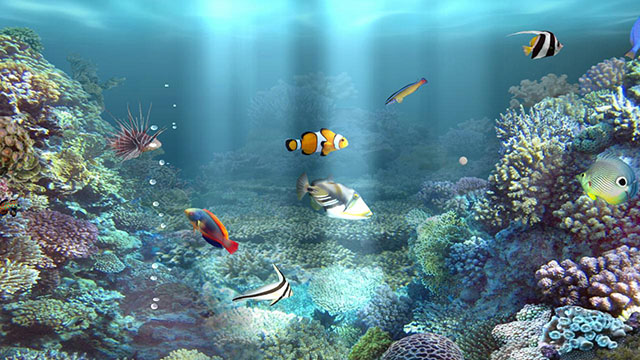
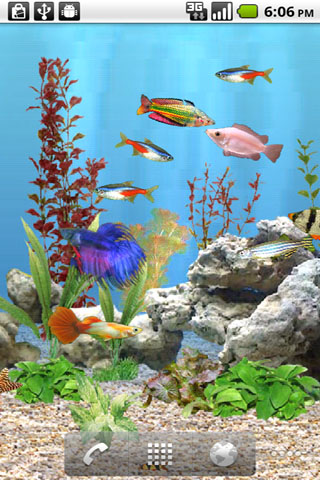
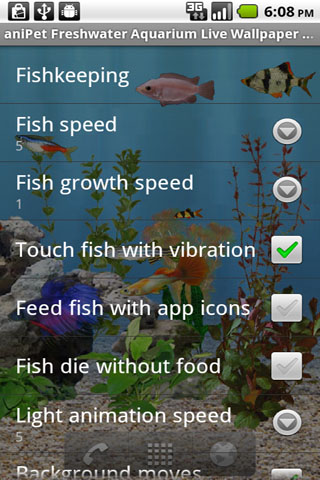
aniPet Freshwater Aquarium is the 4th live wallpaper of aniPet series, it simulates a marine aquarium with interaction. You feed the fish and fish grows. You could select fish from 12 types, set fish speed and fish growth speed. Many options available.

How to set aniPet Freshwater Aquarium Live Wallpaper:

To set aniPet Aquarium as your live wallpaper, take the following steps:
1) Long press in an empty area of your Home screen, the “Add to Home screen” dialog will pops up, select “Wallpapers”. Or you could press the MENU button, then select “Wallpaper” from the option menu.
2) From the “Select wallpaper from” dialog, select “Live wallpapers”.
3) Select the “aniPet Freshwater” from the live wallpaper list.
4) Within the “aniPet Freshwater Aquarium” preview screen
a) press “Settings” button to go to Preference Setting dialog.
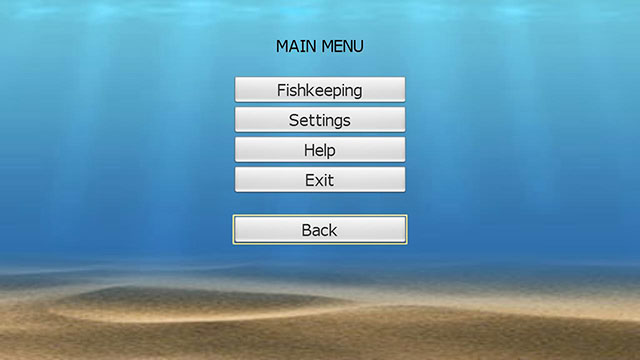
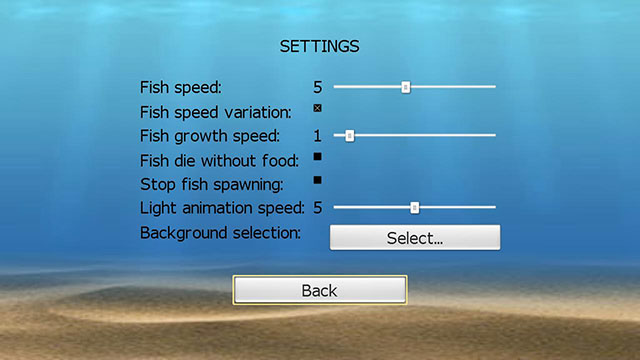
You could launch Fishkeeping page, set fish speed and fish growth speed, choose vibration option when fish is touched, select to feed fish with normal food or application icons, set the option to let fish die without food, set surface light animation speed, set battery save mode, disable aquarium background movement when moving Home screens, and launch Settings by tapping on the top-left corner of the screen.
Press the BACK button to return to the preview screen.
b) press the “Set wallpaper” button to set “aniPet Freshwater Aquarium” as your live wallpaper.

How to use aniPet Freshwater Aquarium Live Wallpaper

To touch the fish:
Tapping on a fish will give you vibration response which could be turned off in Settings, the fish will run away when touched. Touching a mature fish (size 4.0) many times (added up to 10?) may trigger it to have a baby fish. Try your luck.

To feed the fish:
Tapping on any empty area without fish will drop normal food or application icon food down into the aquarium. You could select the food type in Settings.

About the Fishkeeping page:
You launch the Fishkeeping page from Settings. (To launch the Settings, press MENU / Wallpaper / Live Wallpaper / aniPet Freshwater / Settings).
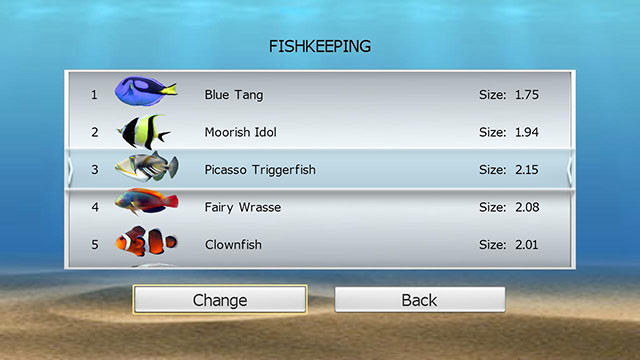
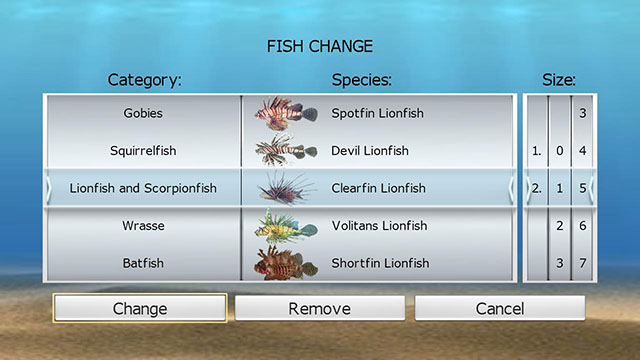
It lists all the fish in the tank. There could have up to 10 fish in the tank. Each fish is listed with information such as its picture, name, and size. Clicking the Exchange button to launch Fish Exchange page, where you could exchange the fish with another one or remove the fish.

Tips:
1) You need to feed your fish daily, one pellet per fish.
2) During the normal feeding mode, only the fish having not got food will try to get the food.
3) After all the fish have got food for that day, it will enter the playing mode, where all the fish will try to get the food.
4) It takes about 300 days for a baby fish to become mature. You could set Fish Growth Speed to 10 to shorten it to 30 days.
5) If the fish die option is set within Settings, fish will die after 4 days without any food.

Troubleshootings:
If you get black screen when you set aniPet live wallpaper by pressing the “Set Wallpaper” button, please first set other stock live wallpaper as your current live wallpaper, then set aniPet live wallpaper as your current live wallpaper again.

aniPet Aquarium Live Wallpaper is released on Android Market

May 27th, 2010

aniPetAquarium icon
aniPetAquarium screenshot aniPetAquarium screenshot

aniPet is a live wallpaper series for animated pets, designed for Android platform v2.1 and later versions.

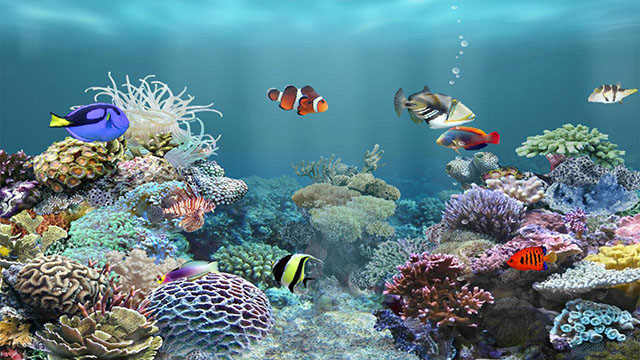
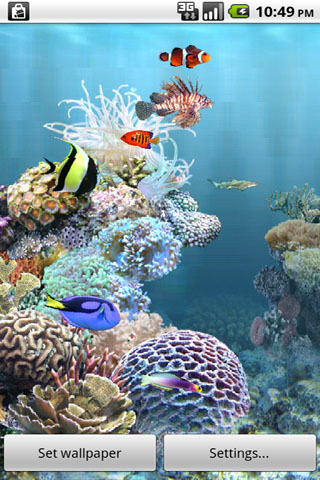
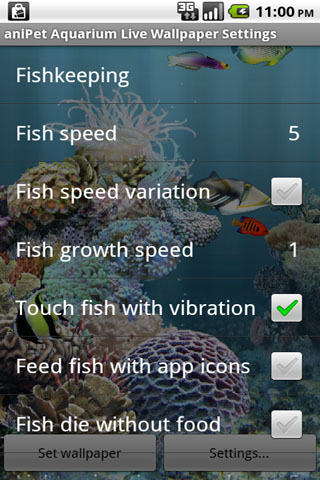
aniPet Aquarium is the 3rd live wallpaper of aniPet series, it simulates a marine aquarium with interaction. You feed the fish and fish grows. You could select fish from 66 types, set fish speed and fish growth speed. Many options available.

How to set aniPet Aquarium Live Wallpaper:

To set aniPet Aquarium as your live wallpaper, take the following steps:
      1) Long press in an empty area of your Home screen, the “Add to Home screen” dialog will pops up, select “Wallpapers”. Or you could press the MENU button, then select “Wallpaper” from the option menu.
      2) From the “Select wallpaper from” dialog, select “Live wallpapers”.
      3) Select the “aniPet Aquarium” from the live wallpaper list.
      4) Within the “aniPet Aquarium” preview screen
            a) press “Settings” button to go to Preference Setting dialog.
      You could launch Fishkeeping page, set fish speed and fish growth speed, choose vibration option when fish is touched, select to feed fish with normal food or application icons, set the option to let fish die without food, set surface light animation speed, set battery save mode, disable aquarium background movement when moving Home screens, and launch Settings by tapping on the top-left corner of the screen.
      Press the BACK button to return to the preview screen.
            b) press the “Set wallpaper” button to set “aniPet Aquarium” as your live wallpaper.

How to use aniPet Aquarium Live Wallpaper

To touch the fish:
      Tapping on a fish will give you vibration response which could be turned off in Settings, the fish will run away when touched. Touching a mature fish (size 4.0) many times (added up to 10?) may trigger it to have a baby fish. Try your luck.
     
To feed the fish:
      Tapping on any empty area without fish will drop normal food or application icon food down into the aquarium. You could select the food type in Settings.
      
About the Fishkeeping page:
      You launch the Fishkeeping page from Settings. (To launch the Settings, press MENU / Wallpaper / Live Wallpaper / aniPet Aquarium / Settings).
      It lists all the fish in the tank. There could have up to 8 fish in the tank. Each fish is listed with information such as its picture, name, and size. Clicking the Exchange button to launch Fish Exchange page, where you could exchange the fish with another one or remove the fish.

Tips:
      1) You need to feed your fish daily, one pellet per fish.
      2) During the normal feeding mode, only the fish having not got food will try to get the food.
      3) After all the fish have got food for that day, it will enter the playing mode,  where all the fish will try to get the food.
      4) It takes about 300 days for a baby fish to become mature. You could set Fish Growth Speed to 10 to shorten it to 30 days.
      5) If the fish die option is set within Settings, fish will die after 4 days without any food.

Troubleshootings:
      If you get black screen when you set aniPet live wallpaper by pressing the “Set Wallpaper” button, please first set other stock live wallpaper as your current live wallpaper, then set aniPet live wallpaper as your current live wallpaper again.

aniPet Koi Live Wallpaper is released on Android Market

April 27th, 2010

aniPetKoi icon
aniPetKoi screenshot aniPetKoi screenshot

aniPet is a live wallpaper series for animated pets, designed for Android platform v2.1 and later versions.

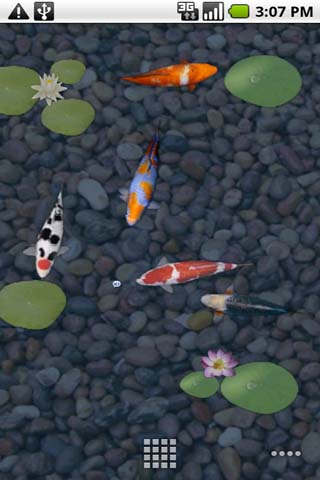
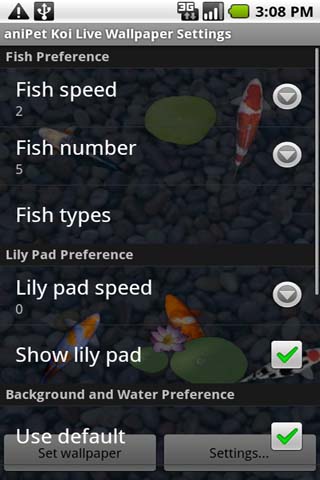
aniPet Koi is the 2nd live wallpaper of aniPet series, it simulates koi swimming in a pond with lily pads. You could select the number of fish (1-5) in the pond, pick fish from 16 koi types, set the speed, change water color/transparency, and even replace the background with your favorite photo. You could feed the fish with normal food or different application icons, touch the fish with vibration effect, move around the lily pad, enable option to show butterfly and dragonfly animation randomly,.
     
How to set aniPet Koi Live Wallpaper:

 To set aniPet Koi as your live wallpaper, take the following steps:
     1) Long press in an empty area of your Home screen, the “Add to Home screen” dialog will pops up, select “Wallpapers”. Or you could press the MENU button, then select “Wallpaper” from the option menu.
     2) From the “Select wallpaper from” dialog, select “Live wallpapers”.
     3) Select the “aniPet Koi” from the live wallpaper list.
     4) Within the “aniPet Koi” preview screen
      a) press “Settings” button to go to Preference Setting dialog.
         You could set fish speed and lily pad moving speed, select the number of fish (1-5) in the pond and their types, even change water color/transparency and the background. Check the “Show animation” option under “Butterfly and Dragonfly Preferences” to enable the random display of butterfly and dragonfly animations.
         Press the BACK button to return to the preview screen.
      b) press the “Set wallpaper” button to set “aniPet Koi” as your live wallpaper.
     
 How to use aniPet Koi Live Wallpaper

 To move around the lily pad:
    First tap on the lily pad to select it, the selected lily pad turns to green, then touch down and move to relocate it. Tap on any other place to deselect it.

To feed the fish:
    Tap on any empty area without lily pad, different food will drop down to the pond.

To touch the fish:
    Tap on fish will give you vibration response which could be turned off in Settings, fish will run away when touched.

aniPet Goldfish Live Wallpaper is released on Android Market

March 11th, 2010

aniPetGoldfish icon
aniPetGoldfish screenshot aniPetGoldfish screenshot

aniPet is a live wallpaper series for animated pets, designed for Android platform v2.1 and later versions.

aniPet Goldfish is the 1st live wallpaper of aniPet series, it simulates goldfish swimming in a pond with lotuses. You could select the number of goldfish in the pond, change the speed, customize their colors, feed the goldfish, and move around the lotuses.
     
How to set aniPet Goldfish Live Wallpaper:

Running aniPet Goldfish as a normal application only gives you the help page with the usage and version information.

 To set aniPet Goldfish as your live wallpaper, take the following steps:
     1) Long press in an empty area of your Home screen, the “Add to Home screen” dialog will pops up, select “Wallpapers”. Or you could press the MENU button, then select “Wallpaper” from the option menu.
     2) From the “Select wallpaper from” dialog, select “Live wallpapers”.
     3) Select the “aniPet Goldfish” from the live wallpaper list.
     4) Within the “aniPet Goldfish” preview screen
      a) press “Settings” button to go to Preference Setting dialog.
         You could select the number of goldfish (1-5) to be added in the pond, set the goldfish speed, change the color of each goldfish, and even change water color if you want.
         Press the BACK button to return to the preview screen.
      b) press the “Set wallpaper” button to set “aniPet Goldfish” as your live wallpaper.
     
 How to use aniPet Goldfish Live Wallpaper

     To move around the lotus:  First tap on the lotus to select it, the selected lotus turns to red, then touch down and move to relocate it.
     To feed the goldfish:  Tap on any empty area without lotus, different food will drop down to the pond.
   
More features coming soon.
Optimized for battery usage.

Update:
v1.1.0 is released on 3/13/10, which includes following modifications:
1) Added support for Droid ESE53.
2) Added option for goldfish speed.

v1.2.0 is released on 3/21/10, which includes following modifications:
1) Added ripple effect.
2) Modified the default background.
3) Modified Settings to include following options:
     * Lotus moving speed and visible switch
     * Water tranaparency
     * Change background option and use default background option (You could now pick any photo/image as the background)

v1.3.2 is released on 4/15/10, which includes following modifications:
1) Added butterfly and dragonfly which appear randomly.
2) Added an option to show/hide butterfly and dragonfly animation.

aniAgenda v1.3.2 is released on Android Market

February 24th, 2010

aniAgenda v1.3.2 has following modifications from v1.2.0:

1. Fixed the bug that all-day events shown under its previous day.
2. Modified to show event End time, and display multiple-day event correctly.
3. Modified the default color of image buttons.
4. Added the option to hide/display Today’s date on top of the toolbar.
5. Added the color customization option to the preference.  To customize colors, click the Preference button to launch the Preference Settings, uncheck “Use default colors”, then click “Customize colors”. From there, you could select background color, and change all the text colors displayed on the Agenda widget.  To let the customized “Agenda event time” color take effect, you will need to uncheck “Use Calender color for the display of event Time”.
6. Added the “New Event” button in the top-left corner for easy event add.
7. Added the event click feature. Now click an event will launch its Event View screen, from there, click the MENU button to Edit/Delete/Add Reminder.
8. Added “Select Displayed Calendars” option to the Preference Settings, so now you could select from which calendars their events will be displayed.
9. Modified the Page buttons (Page Up/Down/Today) to the right side.
10. Tuned the performance of the Month Calendar View.
11. Added the “Page To Today” button to the upper right side of agenda view, press this button to directly page back to Today\’s agenda after having paged down several days.
12. Adjusted the text orientation in month calendar view for Droid (WVGA screen).
13. Changed the date text color for weekend and today in agenda view.
14. Added the option to display the event Time with the Calendar color, so you could know which Calendar the event comes from. The option could be selected within the Preference settings.
15. Fixed the bug that when page down the agenda, events later than 7 days from now are not displayed.
16. Changed the translucent buttons to be more clear.
17. Added the support for launching the HTC calendar when click the Google Calendar button for HTC Hero, etc.

!!! If you already have version 1.3.0 or older version installed, and you have aniAgenda widget on your Home screen, when taking the newer update, you will need to do either one of the following step to let aniAgenda pick up the modified resource files in this update:
*  If your could change your Home screen’s orientation (Portrait/Landscape), change the orientation one time to refresh aniAgenda.
*  Delete the aniAgenda widget from your Home screen, then re-insert a new one.

!!! If you have any Task Killer applicaton installed, please do not add aniAgenda to its Kill Task list. Otherwise, aniAgenda may not update the event and weather information automatically.

aniCamera v2.0.0 is released on Android Market

February 22nd, 2010

aniCamera v2.0.0 has following modifications:

1) Redesigned the user interface.
2) Added preference settings.
3) Added support for Droid and Nexus One.

When aniCamera starts, it displays the Camera Preview screen with 3 image buttons in the right side.

1. Take the funny filtered picture.

The Preview displays the filtered image in real-time.

Click the “Camera” image button in the bottom-right corner to take the picture. You could use the physical “Camera” button to take the picture as well.

After the picture is taken, the screen will keeps that picture,the “Camera” image button will be changed to the “Play” image button, and shortly a toast message will be displayed after the picture is saved to SD card successfully or with failure.

Click the “Play” image button to return to Preview stage.
 

2. Change the filter.

Click the “Filter” image button in the middle of right side to display the filter list over the Preview screen. At that time, the “Filter” image button will be changed to “Return” image button, click that “Return” button to un-display the filter list.

When filter list is displayed, you could select one of the following filters from the left column:

       Normal, Dent, Stretch, Lens, Wobble Horizental, Wobble Vertical

you can turn on/off “Mirror Horzontal” and/or “Mirror Vertical” filters from the right column as well, which gives you totally 24 ( 6 x 4) filters. When you change the filter selection, the Preview will be changed dynamically based on your selection,so you could easily select filters you want.
 

3. Access the Gallery.

Click the “Gallery” image button in the top-right corner to access the Gallery View.

1) Gallery View

It displays all the pictures you have taken with aniCamera in thumbnails.
Click any thumbnail to go to Picture View screen.
Click the “Return” button (or the BACK button) to return to Preview screen.

2) Picture View

It shows the selected picture.
There are 4 image buttons in the right side:

a) “Delete” button: delete the picture. It may display a confirmation dialog based on the preference settings.
b) “Share” button: pops up the Share options available with your phone, such as Gmail/Messaging/Picasa.
c) “Set As” button: pops up the Set As options available with your phone, such as Wallpaper/Contact Icon.
d) “Return” button: returns to Gallery View screen. BACK button does the same thing.

4. Access the Option Menu.

Press the MENU button to launch the Option Menu:

1) “About” menu
It shows the aniCamera usage and version information.
Click the BACK button to return to Preview screen.

2) “Settings” menu
It shows the preference settings, you could turn on/off following settings:
a) play camera shutter sound when press the Camera button on Preview screen.
b) display a confirmation dialog when delete picture on Picture View screen.

Click the BACK button to return to Preview screen.

aniAgenda v1.2.0 is released on Android Market

December 1st, 2009

aniAgenda v1.2.0 has following modifications from v1.0.0:

1. Added support for 3 different sizes of widget: 4×2, 4×3, 4×4.
2. Fixed the text orientation problem in the pure weather view and month grid calendar view for Droid WVGA screen.
3. Fixed several small bugs.

To insert aniAgenda to your Home screen, first find/prepare a screen with enough empty space (4×2 or 4×3 or 4×4 icons), then long-press in that empty area, select “Widgets”,  followed by “aniAgenda 4×2″ or “aniAgenda 4×3″ or “aniAgenda 4×4″  respectively.